
Receipt Printer Setup and Troubleshooting for Retail POS
Pairing, paper, drivers, and the 5 most common failure modes for thermal receipt printers at the POS — solved by the Lifelong hardware team.
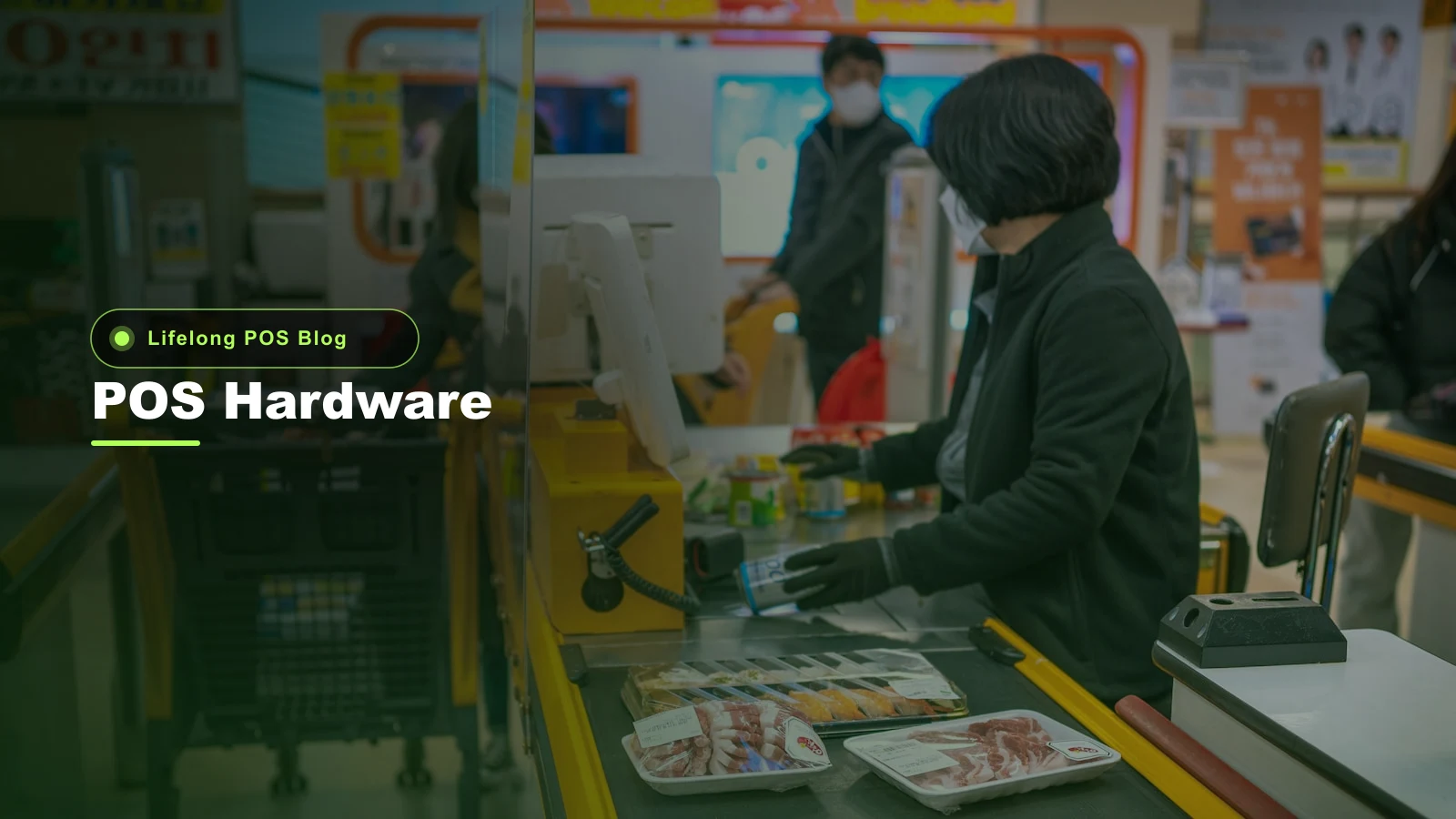
A retail receipt printer setup comes down to four decisions and one buying habit. Decide the interface (USB, Bluetooth, Ethernet, or serial — Ethernet wins for fixed stations), buy 55gsm BPA-free thermal paper sized to the printer (3-1/8" / 80mm is standard), install the correct driver before plugging the printer in, and decide whether each station prints to its own printer or to a shared network printer. Then know the five failures we see most often — faded text, printer offline, partial cuts, gibberish output, and slow print — and the 60-second fix for each. Receipt content is governed by PCI rules (masked PAN, never the full card number); see the PCI Security Standards Council for the underlying device requirements.
The receipt printer is the most-touched piece of POS hardware in the store and the most frequent support call we take. It also has the easiest fixes when you know what to look for. This guide is the same one we walk new merchants through during install — interface, paper, drivers, routing, and the five failure modes that account for ~90% of receipt-printer tickets.
Pick the interface first
The interface (how the printer talks to the POS) decides almost everything else: cable runs, driver flow, failure modes, and which paper-jam recovery you'll do at 11pm on a Saturday. The four common options:
| Interface | Best for | Typical use |
|---|---|---|
| Ethernet (LAN) | Fixed countertop stations, multi-register setups | Main register printers; kitchen printers |
| USB | Single-station, printer sits next to the terminal | Small shops with one register |
| Bluetooth | Mobile handhelds, market booths, line-busting | PAX A77 paired to a portable belt printer |
| Serial (RS-232) | Legacy installs only | Old terminals; rare in 2026 |
Our defaults across the 500+ merchants we ship to — every device on the Lifelong hardware lineup is shipped pre-configured for whichever role it'll play:
- Main register — Landi C20 Pro with its integrated 80mm thermal printer (no external printer needed; one cable, one device)
- Second station — Ethernet printer (Epson TM-T88 or Star TSP100) on the shop LAN
- Mobile handheld — PAX A77 paired by Bluetooth to a portable 58mm belt printer for line-busting or market booths
- Kitchen / back-of-house ticket printer (kava bars, smoke shops with a back counter) — Ethernet printer with its own static IP on the LAN
If your store has more than one register, Ethernet is almost always the right call. It survives a register reboot, a cashier swap, or a tablet replacement without re-pairing.
Thermal paper — what to actually buy
Thermal paper looks generic until you put a bad roll in a printer at month-end. Specs that matter:
- Width — 3-1/8" (80mm) for countertop printers; 2-1/4" (58mm) for mobile/belt printers. Match the printer; the wrong width will jam or print off-center.
- Diameter — 80mm or 90mm roll for standard countertop holders; verify your printer's max roll diameter before bulk-ordering.
- Weight — 55 gsm is the retail standard. Heavier (58–65 gsm) lasts longer and resists curling; lighter (48 gsm) is cheaper but fades faster.
- BPA-free — required in several states (California, Connecticut, Washington, others). Buy BPA-free everywhere and you'll never have to read state-by-state regulations again. It's pennies more per roll.
- Image life — premium thermal paper holds an image for 5–7 years; bargain rolls fade in 6–12 months. For receipts that need to survive a chargeback dispute window or a tax audit, buy the premium roll.
We ship most merchants a case of 50 BPA-free 80mm × 230' rolls at install. A busy liquor store burns through that in 6–8 weeks; a smaller specialty shop in 3–4 months.
One habit worth building: store paper rolls flat, away from heat and direct sun. Thermal paper above ~140°F starts to darken on its own — leave a roll on a sunny windowsill and it's useless by the afternoon.
Driver installation — order matters
The single most common install mistake we see is plugging the printer in before the driver is installed. Windows tries to auto-detect, picks the wrong driver, and you spend the next hour undoing it.
The correct order, on any platform:
- Identify the exact model. "Epson thermal" isn't enough — TM-T88V, TM-T88VI, TM-T88VII, and TM-m30 all use different drivers.
- Download the OEM driver from Epson / Star / Bixolon / etc. — not from a third-party driver site.
- Install the driver fully, including the utility tool (Epson calls it APD; Star calls it futurePRNT). The utility is what lets you print a test page without the POS software.
- Plug the printer in. Now Windows / macOS / the POS already knows the driver.
- Print a test page from the OEM utility. If that works, the OS-level path is good.
- Map the printer in the POS. Now you connect the POS to the OS-level printer.
For the Landi C20 Pro's integrated printer, you skip steps 1–5 — the driver ships pre-installed on the device. You just map it in the POS at first launch.
For a Bluetooth printer paired to a PAX A77, the flow is:
- Power the printer on; put it in pairing mode (button-press varies by model — the Star SM-L200 holds the feed button for 3 seconds)
- On the A77, Settings → Bluetooth → scan; select the printer
- Enter the PIN (usually `0000` or `1234`; check the printer label)
- In the POS app, Settings → Printers → add Bluetooth printer; pick the paired device
- Print a test receipt
Bluetooth pairing is the most fragile part of mobile receipt printing — see failure mode #2 below.
Per-station vs per-location routing
A single-register store doesn't need to think about this; everyone else does.
Per-station printing — each register has its own printer. The POS knows which terminal is ringing the sale and routes the receipt to that terminal's paired printer. This is the default and the right answer for most retailers.
Per-location / shared printing — one network printer serves multiple registers. The POS sends every receipt to the same IP. Useful when the registers are clustered (a coffee bar with three POS terminals on one counter sharing one printer) or when you want kitchen tickets to print from a single back-of-house station.
Split routing — receipts print to the front station, kitchen / prep tickets print to a back-of-house printer. Standard for any operator running a kitchen or prep area alongside the register (kava bars, hookah lounges, juice bars).
In the POS, this is configured per device:
| Device | Receipt printer | Kitchen / ticket printer |
|---|---|---|
| Register 1 (front counter) | Front printer | Back printer |
| Register 2 (second counter) | Second-counter printer | Back printer |
| PAX A77 (line-bust) | Bluetooth belt printer | None (or back printer if on LAN) |
For deeper POS configuration on multi-station setups, see our specialty & counter-culture retail POS.
Receipt formatting — counter vs kitchen
The two receipt types serve different purposes and should look different:
Customer receipt (counter):
- Store name, address, phone
- Date, time, register, cashier
- Line items with prices
- Subtotal, tax, total
- Payment method, last 4 of PAN (masked), auth code
- Tip line if applicable
- Return policy / barcode for returns
- Loyalty signup prompt (optional)
Kitchen / prep ticket:
- Order number — large, top of ticket
- Items only, no prices
- Modifiers and prep notes called out
- Server / customer name
- Timestamp
PCI rules govern what cannot appear on a customer receipt: never the full card number, never the expiration date, never the CVV. Masked PAN (last 4 only) is the standard. The underlying device requirements are documented at the PCI Security Standards Council. Any modern POS handles this automatically — if yours doesn't, that's an immediate switch.
The 5 most common failure modes
After years of receipt-printer support tickets, the same five problems account for ~90% of calls. Here's the diagnostic flow on each.
1. Faded text
Symptoms: receipt prints, but text is light, ghostly, or only the right edge of the receipt prints darkly.
Causes, in order of likelihood:
- Paper roll loaded backwards. Thermal paper has a coated side and an uncoated side; only the coated side prints. Pull the roll out, flip it, reload. Rule of thumb: the paper comes off the top of the roll, not the bottom.
- Bargain / off-spec paper. Cheap thermal paper has thinner coating; print contrast is poor and fades fast. Swap to a 55gsm BPA-free roll from a known supplier.
- Print density set too low. Most printer utilities have a density setting (1–8 or low/med/high). Bump it up one notch.
- Heating element worn out. After 3–5 years of high-volume printing, the thermal head degrades. Symptom: faded print that doesn't improve with new paper or higher density. Replace the printer; cleaning won't fix it.
2. Printer offline / not responding
Symptoms: POS reports "printer offline," "no printer found," or hangs at the checkout step.
Causes, in order of likelihood:
- Bluetooth pair dropped (mobile printers). Power-cycle the printer, re-pair from the A77's Bluetooth menu. If it keeps dropping, the printer is going to sleep — most belt printers have a power-save timeout setting; extend it or disable it.
- Printer asleep / power-saving (USB and Ethernet). Some printers enter deep sleep after 10–30 minutes of inactivity and don't wake on the first print. Disable power-saving in the printer's utility, or set a 60-minute heartbeat in the POS.
- Ethernet cable unplugged or switch port dead. Trace the cable; check the link light on the printer's Ethernet port. Reboot the network switch if needed.
- IP address changed. If the printer was on DHCP and the router handed it a new IP, the POS doesn't know where it is. Fix: assign a static IP or a DHCP reservation to every network printer at install. We do this on every Ethernet printer we ship.
- POS service crashed. Restart the POS app on the terminal — the printer is usually fine; the connection from the app was dropped.
3. Partial cuts / paper not separating
Symptoms: the auto-cutter triggers but the receipt is still partially attached and the cashier has to tear it.
Causes:
- Cutter dust buildup. Thermal paper produces fine dust that accumulates in the cutter blade. Open the printer, blow out the cutter assembly with compressed air, run a test cut. Do this every 90 days on busy printers.
- Cutter blade dulled. After 1–2 million cuts (a busy register hits this in ~3 years), the blade dulls. Most printers ship with a replaceable cutter module; check OEM documentation for the part number.
- Paper roll too tight against the cutter housing. Roll diameter too large for the printer's holder; the paper drags. Use the manufacturer-spec roll diameter.
4. Gibberish / weird characters / boxes
Symptoms: the receipt prints, but lines are garbled — random characters, ASCII boxes, or jagged graphics where text should be.
Causes:
- Driver mismatch. The POS is sending escape sequences for an Epson printer, but the printer is a Star (or vice-versa). Reinstall the correct OEM driver and re-map in the POS.
- Wrong character encoding. Special characters (é, ñ, ™) come through as boxes. Set the printer's character set to UTF-8 or CP437 in the printer utility; match the POS.
- Cable / interface fault (serial only). Bad serial cable or wrong baud rate produces gibberish that gets worse over the receipt. Replace the cable, verify baud rate matches.
- Print buffer corruption. Power-cycle the printer; clear the POS print queue.
5. Slow print / receipts lag the transaction
Symptoms: cashier completes the sale; receipt takes 5–15 seconds to print.
Causes:
- Network printer on Wi-Fi, not Ethernet. Wi-Fi adds 1–3 seconds of latency and stalls when the network is congested. Move to Ethernet — this is the single biggest fix.
- Print queue backed up. Old jobs stuck in the queue serialize behind each other. Clear the print queue; reboot the printer.
- POS sending images / logos at full resolution. A high-res store logo at the top of every receipt adds 2–4 seconds per print. Reduce logo resolution to 200×200 px max, or remove the logo for high-volume stations.
- Cheap printer. Some bargain printers genuinely run at 90 mm/sec; quality units run at 250–300 mm/sec. For a busy register, the cost difference pays back in cashier time within a quarter.
For the broader hardware shortlist this fits into, see /resources/blog/pos-hardware-buyers-guide-2026.
Where Lifelong fits
Every printer we ship arrives pre-configured to the merchant's POS account: paired, mapped, density-set, and tested. The box arrives, you load paper, and the first receipt prints. For Ethernet printers we assign a static IP at the warehouse; for Bluetooth printers we pre-pair to the PAX A77 SKU we're shipping alongside it. For the Landi C20 Pro's integrated printer, the only first-day step is loading the paper roll.
We've been in retail POS and payments for 8 years (the Kermit era and forward). The same hardware team takes the support calls, so when a receipt printer goes offline in week six, the person who picks up the phone is also the person who racked the device.
For the full hardware lineup, see the Lifelong hardware lineup. For a 15-minute consult on routing receipts across a multi-station setup, see talk to our Atlanta team.
FAQ
Do I need a separate receipt printer if my POS terminal has one built in?
Usually no. The Landi C20 Pro's integrated 80mm printer handles most retail volumes. You'd add a second printer only if you need split routing (counter vs kitchen), a second register location, or a mobile / belt printer for line-busting.
Can I use a regular office printer for receipts?
Technically yes; practically no. Inkjet and laser printers use ink/toner that runs out unpredictably, print slowly, and produce a receipt that looks wrong to customers. Thermal is the retail standard for a reason — no ink, fast, cheap per receipt.
How often do I need to replace thermal printer paper rolls?
Depends on volume. A 230-foot 80mm roll yields ~450 receipts at average length. A 100-transaction-per-day store burns through a roll every 4–5 days; a 10-transaction-per-day store gets a month out of one.
Is BPA-free thermal paper required by law?
In several states (California, Connecticut, Washington, others) BPA is regulated or banned in thermal paper. Federal rules are evolving. The practical answer: buy BPA-free everywhere. The cost difference is pennies per roll and you sidestep the regulatory question entirely.
My Bluetooth printer keeps disconnecting from the A77 — what do I do?
Three checks: (1) disable the printer's power-saving / sleep mode in its config utility, (2) make sure no other Bluetooth device is fighting for the pairing (un-pair anything you're not using), (3) keep the printer within ~30 feet of the A77 with no metal in between. If it still drops, the printer's Bluetooth radio is probably failing — most belt printers last 2–3 years before the radio degrades.
About the Lifelong team
We're an Atlanta-based POS and payments team supporting 500+ general and counter-culture retailers across all 50 states. Our writing reflects what we see across the deployment fleet — workflows, hardware, compliance, and the operator playbooks that actually work in real shops. Meet the team.
Editorial reviewed by Kermit Lowry, Founder & CEO — University of Georgia MIS, 8 years in POS and payments.